What's new · 8 October 2026
New animator, coaching points, non-contact players
Three additions since the last note: a new animator for your plays, coaching points you can read at a glance in the middle of training, and a way for players to tell you they'll train but can't take contact. The smaller changes are at the bottom.
A new animator for your plays
Free
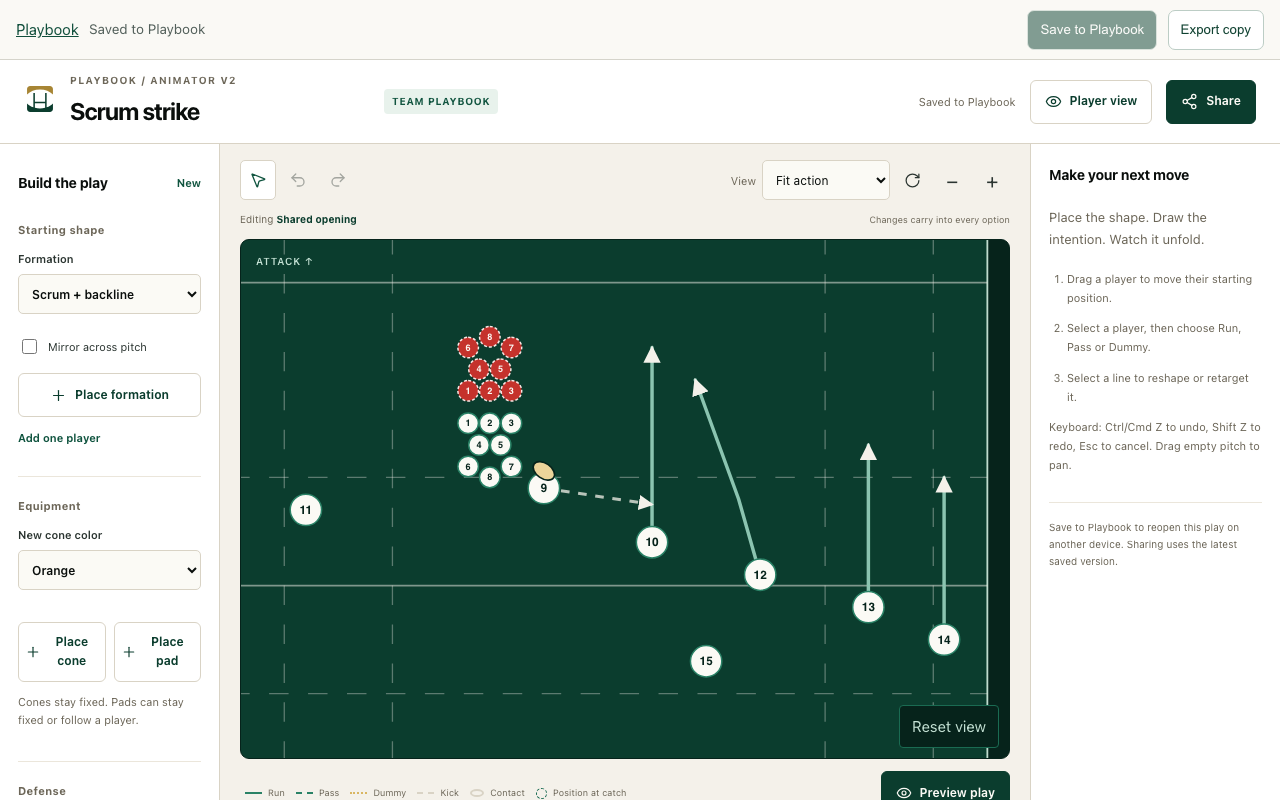
You can now draw a play the way it really runs: one continuous movement off the set piece that branches at the read into each option you coach. Add cones and pads, kicks, tackles and rucks, then press Save to Playbook to reopen it on any device. Share it as a link, export it as a video, or play it from Run mode during training. Your existing plays and the old editor stay as they are.
Try it
- Open Playbook and press Open new animator.
- Draw runs with holds, then passes and dummies; catch ghosts show where each receiver will be. Select the carrier, then Kick or Contact.
- Press Save to Playbook, then Share from the play's page.
Coaching points you can read mid-session
Season kit
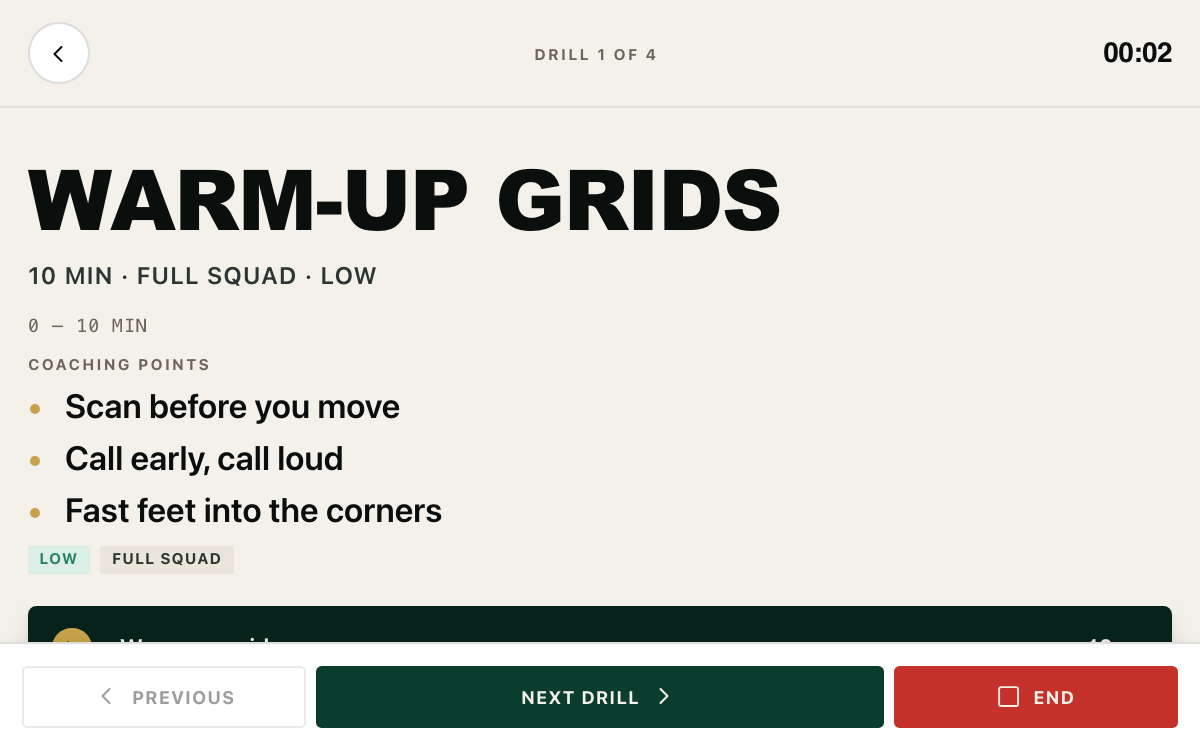
The points you meant to coach now sit on screen while you run the session, in large type you can read from a phone at arm's length. Every drill has a Coaching points field under its description, one point per line. Add them in the planner or the drill library; a library drill carries its points into the sessions that use it. Station blocks show theirs too, and shared drills and sessions show them to whoever opens the link.
Try it
- In a session, open a drill and press Add coaching points.
- Type one point per line.
- Press Start; the points sit under the drill's description.
Players can mark themselves non-contact
Free
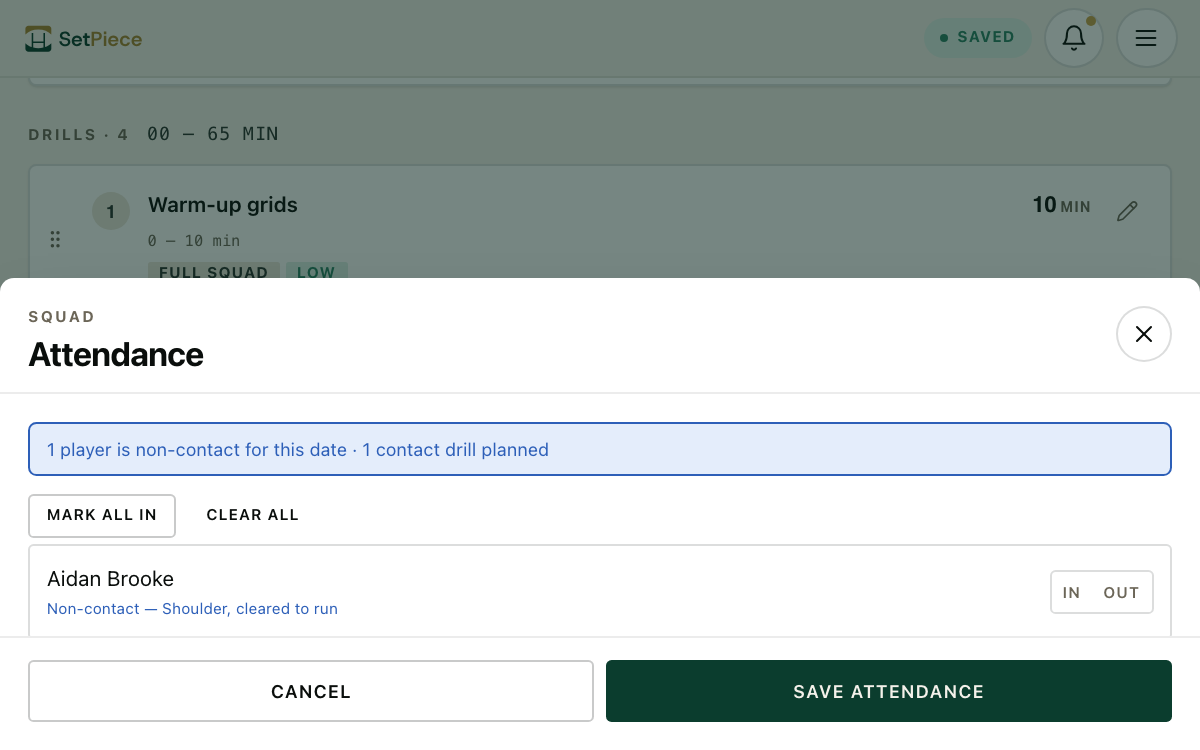
You'll know before training who's coming but can't take contact. Players now have a fifth answer on their availability link: Training, no contact. Before, they had to pick Available or Injured, and neither was true. You see a blue Non-contact tag on the player, their reason in the session's attendance list, and a line that sets how many are non-contact against how many contact drills you've planned.
Try it
- Open Squad and press Send week.
- Players who'll train without contact pick Training, no contact.
- In a session, press Pick squad (or Edit) under Attendance to see who's non-contact.
Also improved
- Edit a match's opponent, kickoff or location, mark it postponed or cancelled, or delete it from the match page.
- Type your own session focus and week theme; your team's recent ones come back as chips.
- A Custom chip on drill group, for splits like "10s only" or "Stars and Stripes".
- Drills and stations in a session show their reference videos: a Video tag in the planner, a References button in Run.